This rainbow is 3300 miles long

We’ve started the new year strong with more weekly Open Sessions hosted by Ben Lewis and Eden Casteel on FarPlay Meet, our platform that lets you connect with the wider FarPlay community, free to all subscribers. Interested in being among the first to experience Meet? Sign up now for early access.

Here’s a taste of what’s waiting for you. Despite the cross-country distances, Randy Felts on Synthophone (MIDI sax) in Boston, MA, Jean-Luc Landry on bass in Montreal, QC, Robert Jackson on trumpet in Coos Bay, OR, Meri Ziev on vocals in Ocean Ridge, FL, and Eden Casteel on piano in South Kingstown, RI performed this sparkling rendition of Arlen & Harburg’s “Over the Rainbow” during one of Eden’s “FarPlay at 4” open mics on Meet.

Eden’s open mics are Wednesdays at 4pm New York time and Ben Lewis’s weekly jazz jams are Tuesdays at 11am New York time. Want to drop in? Join the FarPlay Meet beta — free with your subscription — and look under Open Sessions, where you can browse sessions (or create your own!).

Fix distortion when you play loudly

Do other musicians hear distortion when you sing or play loudly? Simply lower your mic’s input level. The video below shows how we walked a singer through the steps for her in Windows. It’s easy to find the settings in Macs, Windows PCs, and external audio interfaces. For details, check out our new blog post.

Monthly support sessions

Want to get live tech support like in the video above? Sign up for our monthly support session Saturday, February 21st 2:00pm New York time (8:00pm Central European time). Our following session will be Saturday, March 14th 2:00pm New York time (7:00pm Central European time).

Monthly tech-support sessions are available free to paid subscribers and students of FarPlay For Teachers subscribers. These sessions are a great way to get help with FarPlay and FarPlay Meet. Sign up for support sessions here.

Get in touch

We love featuring our amazing users. If you’d like to be included — whether you use FarPlay for lessons, rehearsals, jam sessions, or conversations — we’d love to talk to you. You can let us know by emailing us at contact@farplay.io.

Need help right away? Check out our FAQ & Troubleshooting Guide, which you can open from the Help menu in the latest version of FarPlay. If you haven’t already, upgrade free to the latest version.

If you’d like to ask tech-support questions, our forum is the fastest way to reach us. If you need to reach us privately, email us at support@farplay.io — we’re happy to help!

—David Liao & the FarPlay team

Mic distorting at high volume? Easy fix.

Do other musicians hear distortion when you sing or play loudly? Simply lower your mic’s input level. You’ll go from audio that peaks and distorts to audio that’s clean.

Entire level meter lights up (level meter “peaks”).
Level meter doesn’t peak.

It’s easy to find the settings in Macs, Windows PCs, and external audio interfaces, as shown below.

These steps fix the problem right away for our ultra-low-latency jamming app FarPlay. You can also use these steps to fix the same problem on a regular video-chat app like Zoom, Teams, and WebEx, but you’ll need an extra step. First, go to your regular video-chat app’s audio settings to turn off automatic mic-level adjustment. Then, use the steps on this page.

Windows PC and mic without gain knob

If you’re using a Windows PC and there’s no physical gain knob or slider for your mic (typical for mics built into PCs and mics on headsets), follow the steps below. The video below walks through the steps for Windows 11.

  • Close all other apps that can use the mic.
  • Click Start > Settings > System > Sound.
  • Scroll down to the Input section. Select the mic you’re using.
  • If you’re on Windows 10, click Device Properties.
  • While singing or playing at your strongest volume, drag your mic’s Volume slider toward the left until your sound no longer makes your level meter peak.

Mac and mic without gain knob

If you’re using a Mac and a mic that doesn’t have a physical gain knob or slider (typical for mics built into Macs and mics on headsets), use the steps below. Note that if you use a Mac from 2016 or after, we recommend using an external mic because the built-in mic on most Macs from 2016 or later adds 30 ms of latency.

  • Close all other apps that can use the mic.
  • Click Apple menu > System Settings… > Sound.
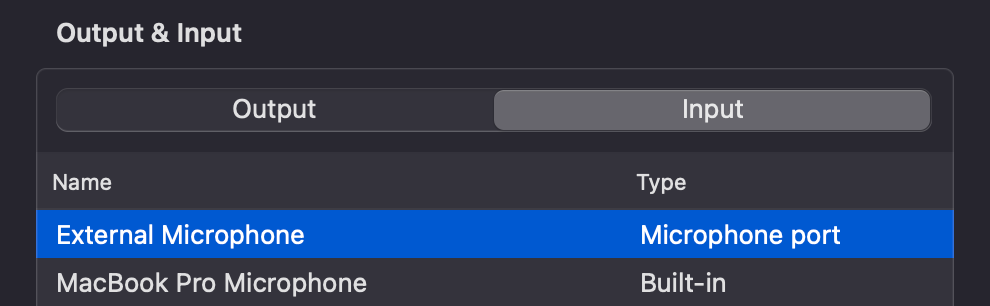
  • Click the Input tab. Then, click to highlight the mic you’re using.
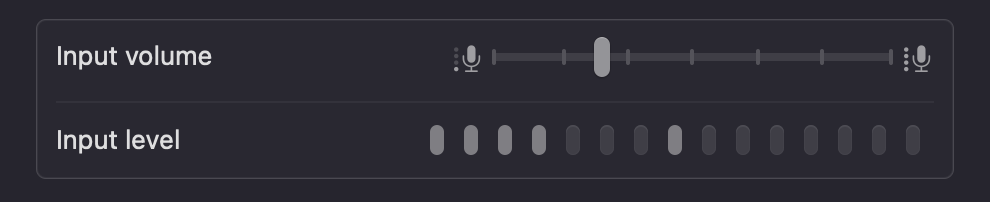
  • While singing or playing at your strongest volume, drag the Input volume slider toward the left until your sound no longer makes your level meter peak.

Mic or audio interface with gain knob

If there’s a physical gain knob or slider for your mic, follow the steps below.

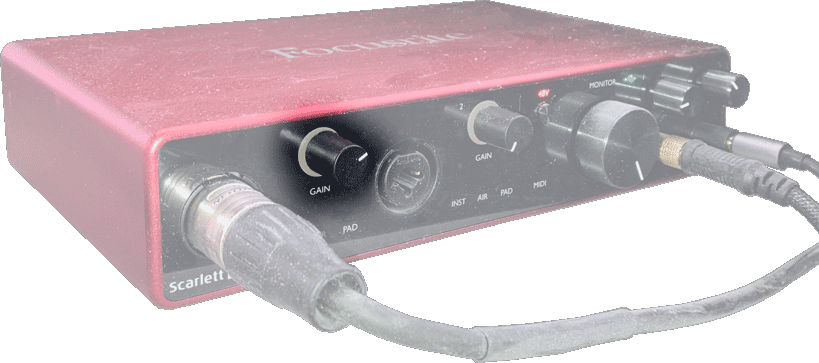
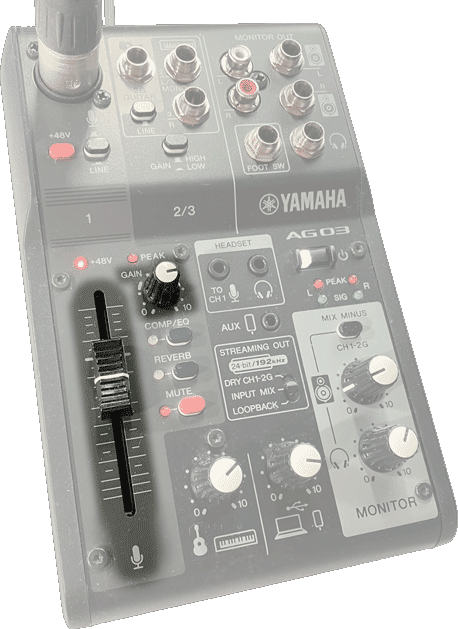
  • If your mic is plugged into a Focusrite Scarlett or other external audio interface, find the jack where the mic cable plugs in and look for a knob or slider nearby labeled “Gain” or labeled by an icon of a mic. Your audio interface might have both a mic-level slider and a gain knob. Below are some examples.
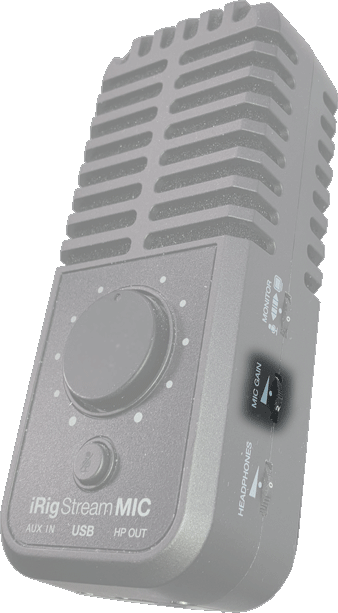
  • If you have an all-in-one USB mic, find the gain knob on the mic itself. On the iRig Stream Mic USB, for example, find the “MIC GAIN” wheel on the side.
  • While singing or playing at your strongest volume, rotate the gain knob counterclockwise, rotate the gain wheel toward lower numbers, or pull the gain slider down until your sound no longer makes your level meter peak.

—David Liao