
Do other musicians hear distortion when you sing or play loudly? Simply lower your mic’s input level. You’ll go from audio that peaks and distorts to audio that’s clean.


It’s easy to find the settings in Macs, Windows PCs, and external audio interfaces, as shown below.
These steps fix the problem right away for our ultra-low-latency jamming app FarPlay. You can also use these steps to fix the same problem on a regular video-chat app like Zoom, Teams, and WebEx, but you’ll need an extra step. First, go to your regular video-chat app’s audio settings to turn off automatic mic-level adjustment. Then, use the steps on this page.
Windows PC and mic without gain knob
If you’re using a Windows PC and there’s no physical gain knob or slider for your mic (typical for mics built into PCs and mics on headsets), follow the steps below. The video below walks through the steps for Windows 11.
- Close all other apps that can use the mic.
- Click Start > Settings > System > Sound.
- Scroll down to the Input section. Select the mic you’re using.
- If you’re on Windows 10, click Device Properties.
- While singing or playing at your strongest volume, drag your mic’s Volume slider toward the left until your sound no longer makes your level meter peak.
Mac and mic without gain knob
If you’re using a Mac and a mic that doesn’t have a physical gain knob or slider (typical for mics built into Macs and mics on headsets), use the steps below. Note that if you use a Mac from 2016 or after, we recommend using an external mic because the built-in mic on most Macs from 2016 or later adds 30 ms of latency.
- Close all other apps that can use the mic.
- Click Apple menu > System Settings… > Sound.
- Click the Input tab. Then, click to highlight the mic you’re using.
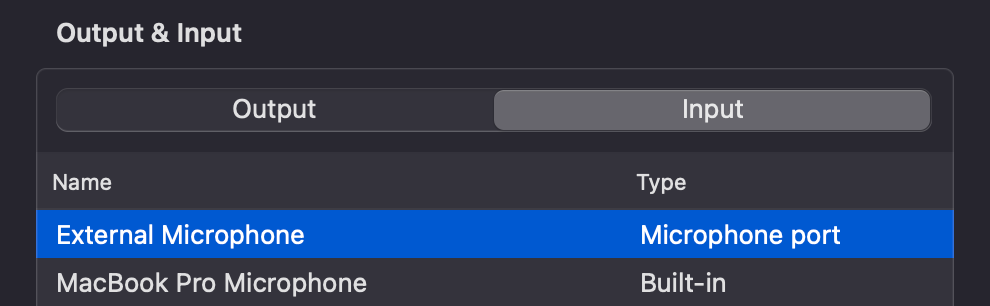
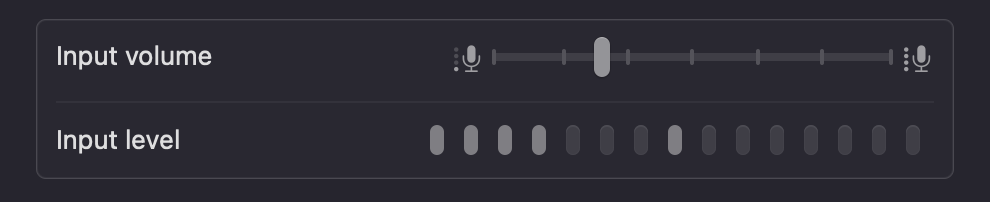
- While singing or playing at your strongest volume, drag the Input volume slider toward the left until your sound no longer makes your level meter peak.
Mic or audio interface with gain knob
If there’s a physical gain knob or slider for your mic, follow the steps below.
- If your mic is plugged into a Focusrite Scarlett or other external audio interface, find the jack where the mic cable plugs in and look for a knob or slider nearby labeled “Gain” or labeled by an icon of a mic. Your audio interface might have both a mic-level slider and a gain knob. Below are some examples.
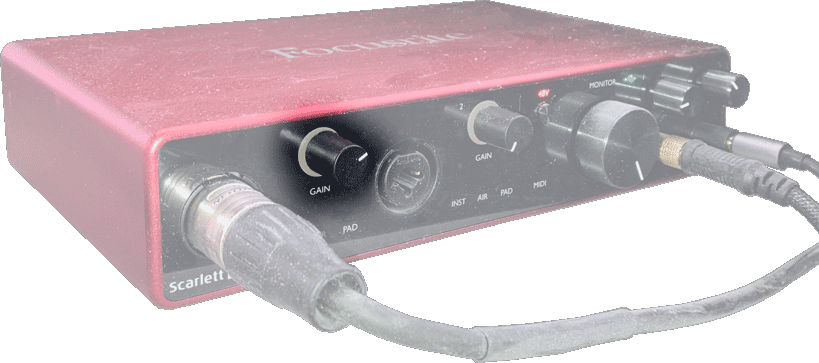
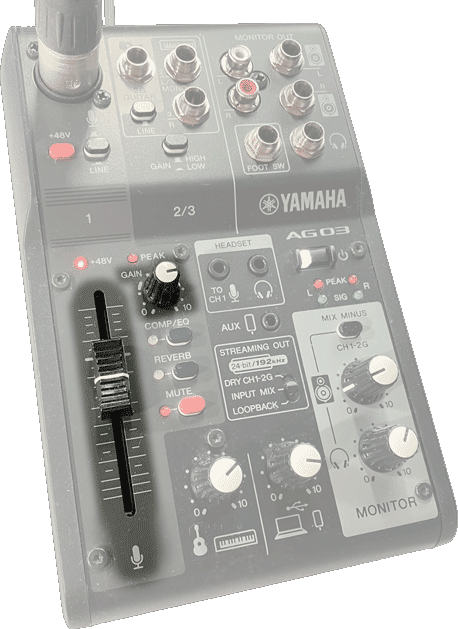
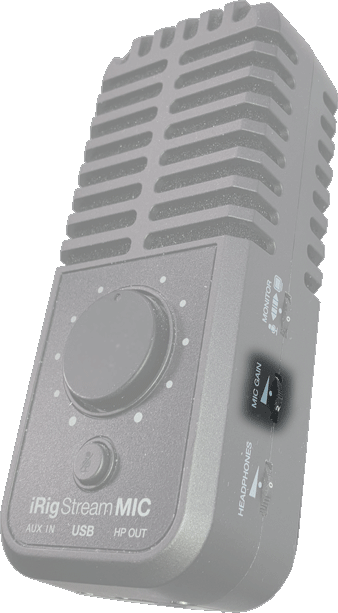
- If you have an all-in-one USB mic, find the gain knob on the mic itself. On the iRig Stream Mic USB, for example, find the “MIC GAIN” wheel on the side.
- While singing or playing at your strongest volume, rotate the gain knob counterclockwise, rotate the gain wheel toward lower numbers, or pull the gain slider down until your sound no longer makes your level meter peak.
—David Liao