
Plugged your instrument or mic into your audio interface but the sound isn’t coming into FarPlay? Change the Microphone in FarPlay to the Input Mixer, and create tracks for as many mics, instruments, and other audio sources as you’d like!
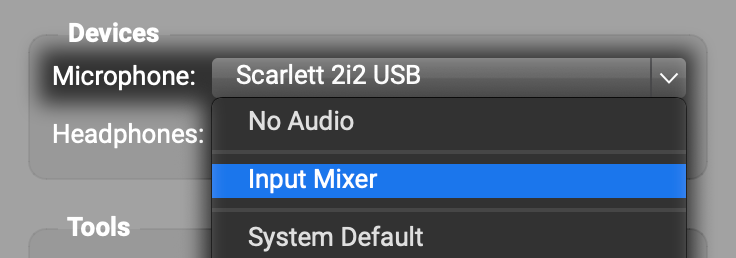
- In the Devices subpanel, click the Microphone pull-down menu and choose Input Mixer.
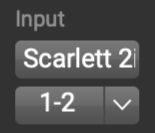
- In the Input Mixer window that pops up, click the first track’s input-device menu, which initially says “No Audio”, and choose your audio interface. Set the channel selector to an input channel you’d like to use.
- Press the circled plus to create as many additional input tracks as you’d like. For each track, choose the input device (you can use more than one device at the same time!) and input channels to use.

- Use a track’s slider to adjust the track’s gain.

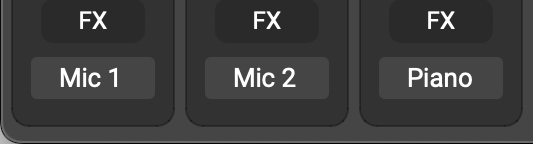
- To label tracks with custom names, type into the text boxes at the bottoms of the tracks.
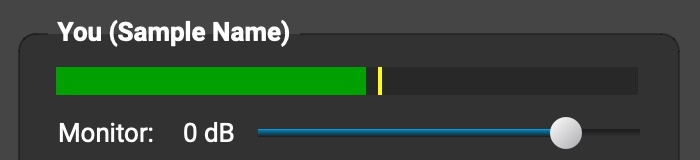
- To listen to the mix you’re sending to other musicians, drag the monitor slider under your name toward the right.
To learn more about the Input Mixer (including stereo panning and our built-in reverb feature), see our mixer instructions.
—David Liao