A short pause Sunday, then a better way to manage subscriptions

We’re excited to share an improvement to our website, one we’ve been working on for a long time.

This Sunday, November 29th, between 4:00am and 6:00am New York time (between 10:00am and 12:00pm Central European time), we’re switching subscription management over to our new system. During that time, you won’t be able to start or make changes to subscriptions. Automatic renewals and expirations will continue as usual. The FarPlay app and service will continue to work. You’ll continue to be able to create and join sessions and use app features as usual. If you have questions, email us at support@farplay.io. We’re happy to help.

What you’ll find when we’re back

Once Sunday’s switch is done, the Subscription section of My Account will show you everything about a subscription: your plan, when it renews or ends, and what to do next, in plain language. You can change your plan or turn auto-renewal off and back on right there, so you’ll rarely need to go over to Stripe. If you don’t have a subscription yet (you’re on FarPlay’s basic Free plan), click Browse plans there to see the plans and subscribe.
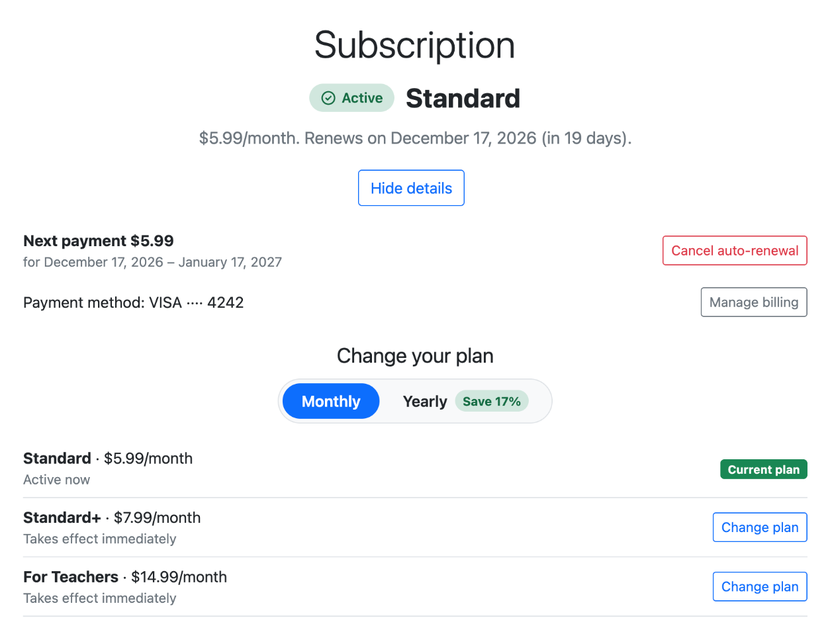
The Subscription section of My Account, showing a Standard plan that renews on December 17, the next payment, buttons to cancel auto-renewal and manage billing, and the list of plans to change to.

Payments are still handled securely by our payment processor, Stripe. We never have access to your credit card.

You can also change plans yourself during a free trial, and your trial continues. Until now, a plan change during a free trial had to be handled manually by our team.

For step-by-step instructions, see our Account Management page, which will be updated during the maintenance.

—David Liao & the FarPlay team
This Saturday’s support session, and reducing lag in large sessions

Support session: November 21st

Quick reminder that November’s monthly support session is Saturday, November 21st 2:00pm New York time (8:00pm Central European time). Our following session will be Saturday, December 12th at the same time. Sign up for monthly support sessions here.

Monthly tech-support sessions are available free to paid subscribers and students of FarPlay For Teachers subscribers. These sessions are a great way to get live tech support for FarPlay and FarPlay Meet.

A lot of lag when there are a lot of participants?

At last month’s support session, one of our users wanted to fix the high lag they noticed when about nine or more people joined their group’s sessions. If someone has low lag in small sessions, but a lot of lag with everyone else in large sessions, have them try these steps (if one step doesn’t help enough, try the next): (1) send mono instead of stereo, (2) minimize their video bandwidth, and (3) raise their audio buffer size. For details, see our blog post.

Get in touch

Need help right away? Check out our FAQ & Troubleshooting Guide. For tech-support questions, our forum is the fastest way to reach us. To reach us privately, to tell us how you use FarPlay, or for business inquiries, see our contact page.

We hope you’ve been enjoying FarPlay 1.4.1! If you haven’t upgraded yet, upgrade for free here.

—David Liao & the FarPlay team

A lot of lag when there are a lot of participants? Try these three steps

Is there a lot of lag between you and everyone else once your session has a lot of participants, even though the same session works fine with just a couple of people? Maybe others say you sound crackly, too. Try the three steps below, in order, as attendees of a recent monthly support session learned. If one step doesn’t do enough, go on to the next.

Step 1: Send mono

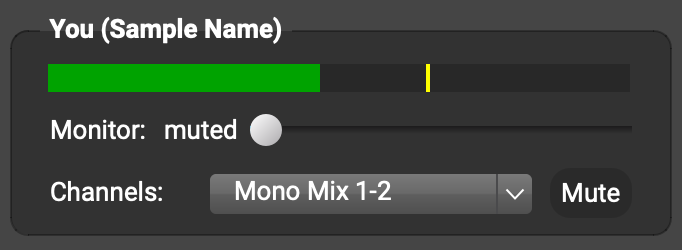
  • In FarPlay’s main window, under You, click the Channels pull-down menu and pick Mono Mix. Sending mono uses half as much bandwidth as sending stereo.
The You subpanel with Channels set to Mono Mix 1-2
  • If your Microphone is set to Input Mixer, the Channels pull-down menu above will be replaced by an Input Mixer button. Click this button to open the Input Mixer, and set Mixer Output to Mono.
The top of the FarPlay Input Mixer window, with Mixer Output set to Mono

Step 2: Minimize video bandwidth

  • Click the gear in FarPlay’s main window to open Preferences.
The Tools subpanel, with the gear at the right
  • Click the Video tab.
The top of the Preferences window, with the Video tab selected
  • Set Your max outgoing bandwidth to 75 kbps.
Your max outgoing bandwidth set to 75 kbps
  • Set Your max resolution (width in pixels) to 320. Then press OK.
Your max resolution (width in pixels) set to 320

Step 3: Raise your audio buffer size

You may have heard that you should lower the audio buffer size to lower the latency. This is typically true — if your computer is fast enough. If you use a slower computer that struggles in a large group session, raising the buffer size can reduce your computer’s workload enough to reduce the lag you have with everyone else.

On a Mac, or on a Windows PC using Windows Audio:

  • Click the gear to open Preferences, and go to General Options.
The top of the Preferences window, with the General Options tab selected
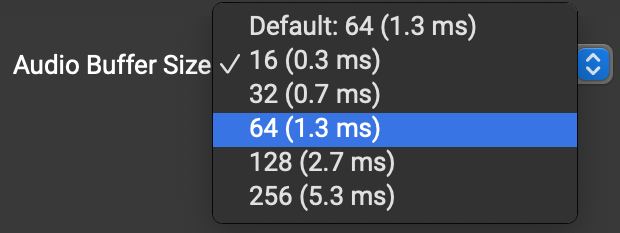
  • Use the Audio Buffer Size pull-down menu to choose a larger size (try 64 on older Macs). On a Windows PC, try increasing the audio buffer size by one step. Then press OK.
The Audio Buffer Size menu open, with 64 highlighted

On a Windows PC using an audio interface with ASIO drivers:

  • Click the gear to open Preferences, go to General Options, and click ASIO Buffer Settings.
The grayed-out Audio Buffer Size setting and the ASIO Buffer Settings button
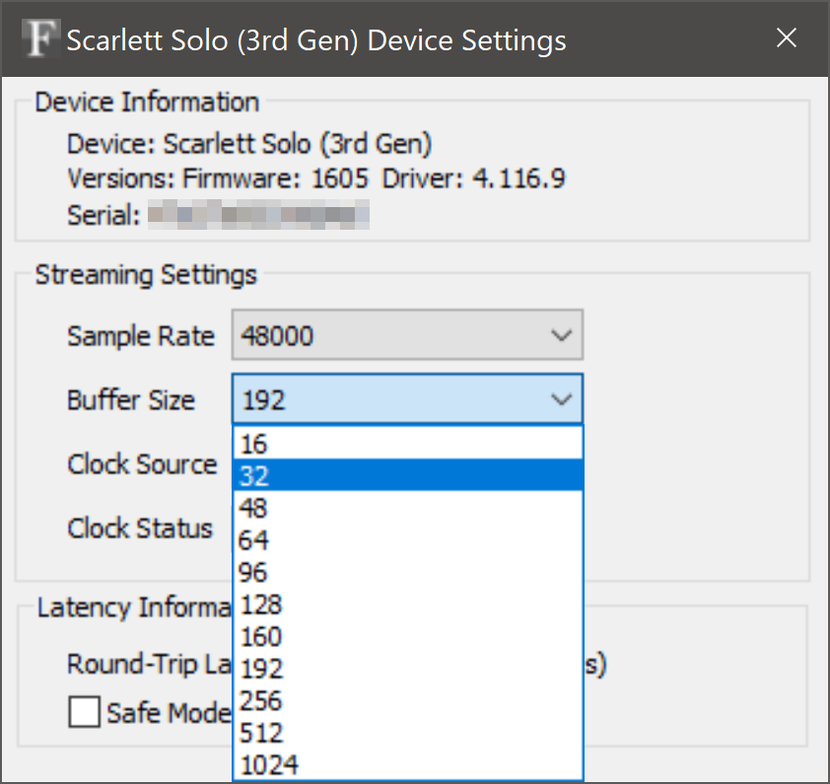
  • In your audio interface’s ASIO control panel, raise the buffer size one step, for example from 16 to 32, or from 32 to 64.
A Focusrite ASIO control panel with the Buffer Size list open

Why these steps help

In a FarPlay session, each participant sends their audio and video directly to each of the other participants, rather than through a server. In a session of ten people, every computer sends nine copies of its audio and video, one to each of the other nine, and receives nine. So each time someone joins, everyone’s internet connection has more to send, and everyone’s computer has more to process. Steps 1 and 2 cut down what you send. Step 3 helps your computer keep up with processing all that audio and video.

Get help live

Want to ask questions like these in person? Join one of our monthly tech-support sessions, free to paid subscribers and to students of FarPlay For Teachers subscribers. Sign up here.

—David Liao

Important bug fix: upgrade to FarPlay 1.4.1 now

Hi all,

With our latest FarPlay 1.4 update, we made an important move forward for Macs, bringing them native Apple silicon code. However, this move also created a quirk deep in our recording pipeline. As a result, recordings made with FarPlay 1.4 on Macs with Apple silicon could contain serious problems, like repeated sections of audio, extra silence, or even inclusion of audio snippets from a previous recording.

We take great pride in the robustness of FarPlay in general, and of our recording feature in particular. We use it ourselves all the time. We’ve moved fast to address this critical issue, and hope it hasn’t caused difficulties on your end. If it has, we apologize.

In the process of addressing this, we uncovered an unrelated, much smaller issue that could affect recordings on Windows: recording could fail if anyone in the session had certain punctuation in their display name. This, also, is now fixed.

We highly recommend that all FarPlay users upgrade to FarPlay 1.4.1 immediately. FarPlay updates, as always, are free.

Many thanks for your support,
—Dan Tepfer, David Liao, & the FarPlay team