
Is there a lot of lag between you and everyone else once your session has a lot of participants, even though the same session works fine with just a couple of people? Maybe others say you sound crackly, too. Try the three steps below, in order, as attendees of a recent monthly support session learned. If one step doesn’t do enough, go on to the next.
Step 1: Send mono
- In FarPlay’s main window, under You, click the Channels pull-down menu and pick Mono Mix. Sending mono uses half as much bandwidth as sending stereo.
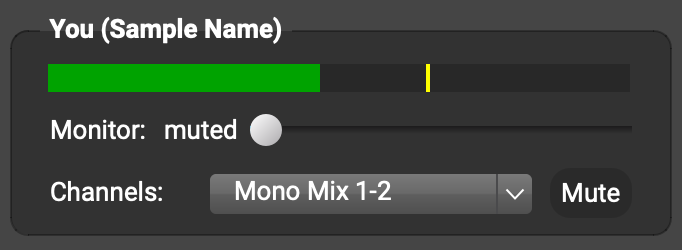
- If your Microphone is set to Input Mixer, the Channels pull-down menu above will be replaced by an Input Mixer button. Click this button to open the Input Mixer, and set Mixer Output to Mono.

Step 2: Minimize video bandwidth
- Click the gear in FarPlay’s main window to open Preferences.
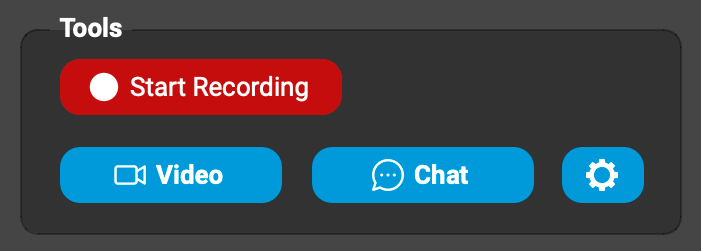
- Click the Video tab.

- Set Your max outgoing bandwidth to 75 kbps.

- Set Your max resolution (width in pixels) to 320. Then press OK.

Step 3: Raise your audio buffer size
You may have heard that you should lower the audio buffer size to lower the latency. This is typically true — if your computer is fast enough. If you use a slower computer that struggles in a large group session, raising the buffer size can reduce your computer’s workload enough to reduce the lag you have with everyone else.
On a Mac, or on a Windows PC using Windows Audio:
- Click the gear to open Preferences, and go to General Options.

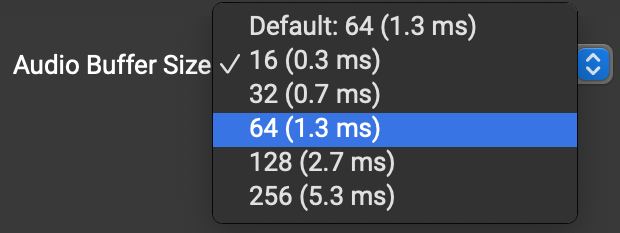
- Use the Audio Buffer Size pull-down menu to choose a larger size (try 64 on older Macs). On a Windows PC, try increasing the audio buffer size by one step. Then press OK.
On a Windows PC using an audio interface with ASIO drivers:
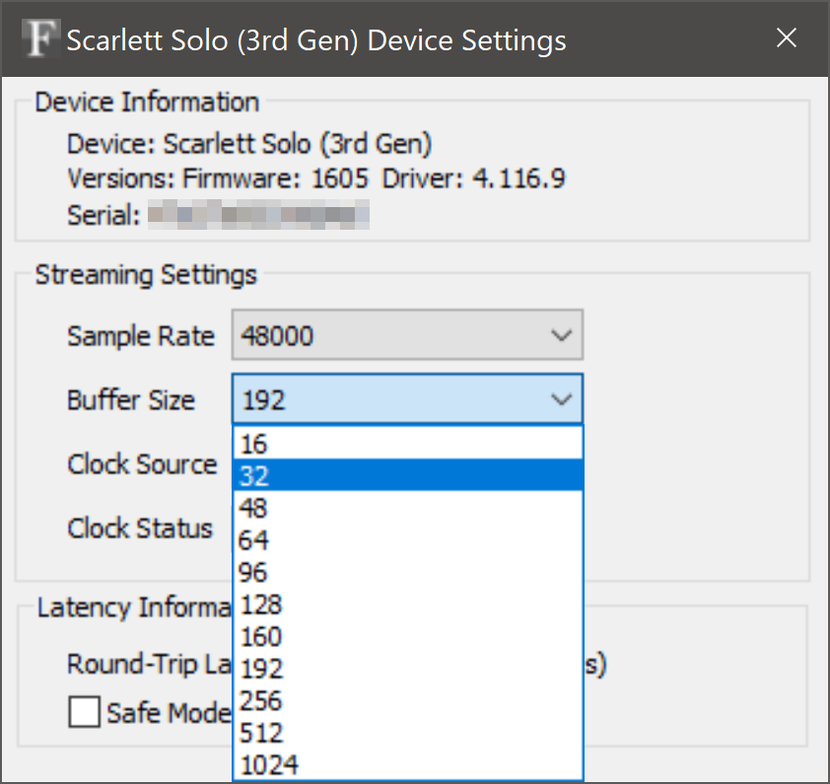
- Click the gear to open Preferences, go to General Options, and click ASIO Buffer Settings.

- In your audio interface’s ASIO control panel, raise the buffer size one step, for example from 16 to 32, or from 32 to 64.
Why these steps help
In a FarPlay session, each participant sends their audio and video directly to each of the other participants, rather than through a server. In a session of ten people, every computer sends nine copies of its audio and video, one to each of the other nine, and receives nine. So each time someone joins, everyone’s internet connection has more to send, and everyone’s computer has more to process. Steps 1 and 2 cut down what you send. Step 3 helps your computer keep up with processing all that audio and video.
Get help live
Want to ask questions like these in person? Join one of our monthly tech-support sessions, free to paid subscribers and to students of FarPlay For Teachers subscribers. Sign up here.
—David Liao